
A contact portal link opens a read-only page. The payer’s link shows everything. A student’s link shows lessons only. To create the links, follow Share lessons with a student through the contact portal.
The contact portal is available to founding members with early features turned on.
Open a family’s page as they see it
- Select Contacts in the sidebar.
- Select the payer or one of their students.
- Find the Contact portal section on the right.
- Select Copy next to the link you want to check.
- Open a private browser window and paste the link.
Use a private window so you see the page signed out, like the family does.
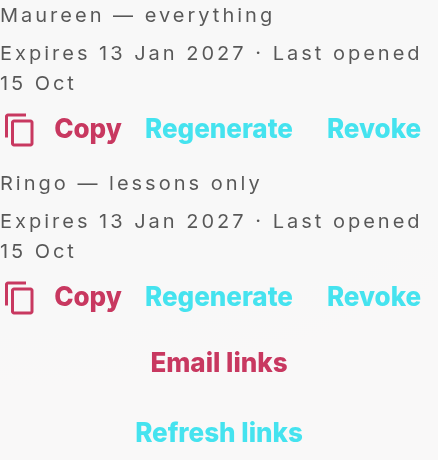
Opening a link yourself updates its Last opened date.
What the payer sees
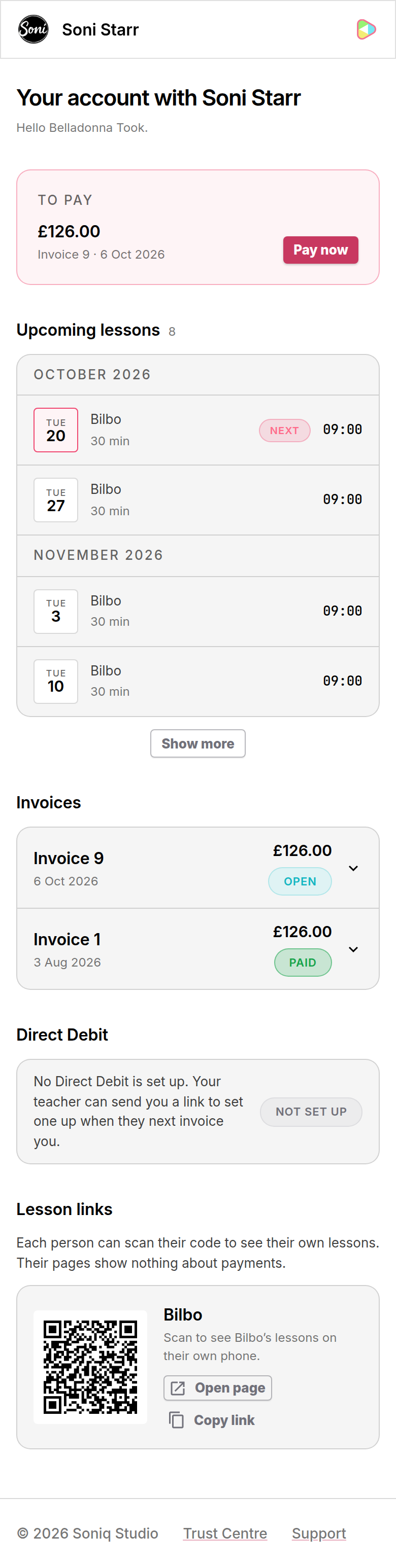
The payer’s page starts with “Your account with” your name, then “Hello” and their name.
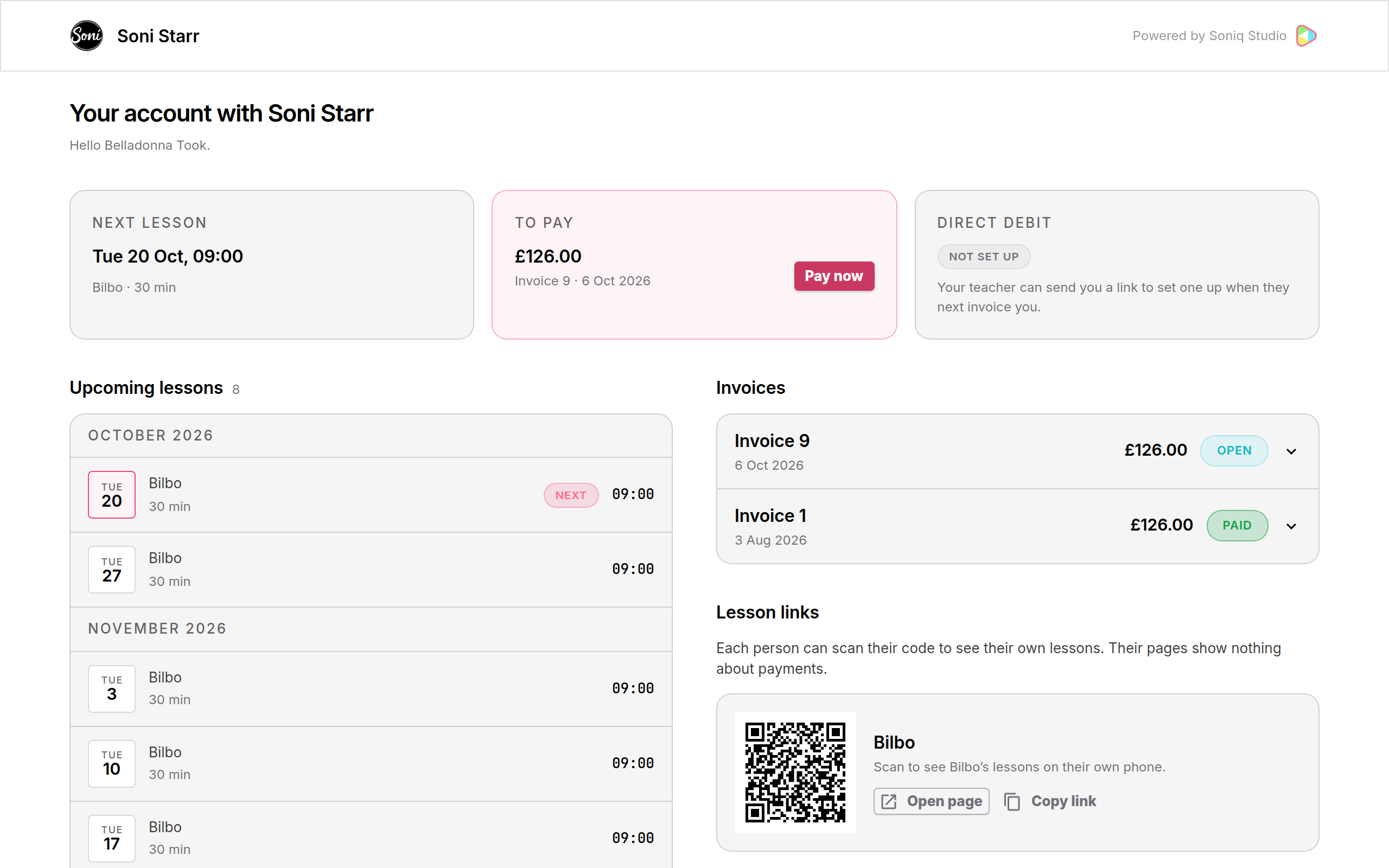
| Section | Shows |
|---|---|
| Next lesson | The date, time and student of the next lesson, or “None scheduled”. |
| To pay | The total of all open invoices, or “Nothing to pay”. Pay now opens the payment page. With more than one open invoice, it opens the one due soonest in the list. |
| Direct Debit | The Direct Debit status: Not set up, Awaiting confirmation, Active, Cancelled, Expired or Failed. |
| Upcoming lessons | Every lesson in the next eight weeks for the payer’s students, grouped by month. |
| Invoices | The 50 most recent invoices, with the amount and status. Draft invoices do not appear. |
| Lesson links | A QR code for each student’s lessons-only page, with Open page and Copy link. |
For what each status means, see Invoice fields and statuses and Payment and mandate statuses.
Check an invoice
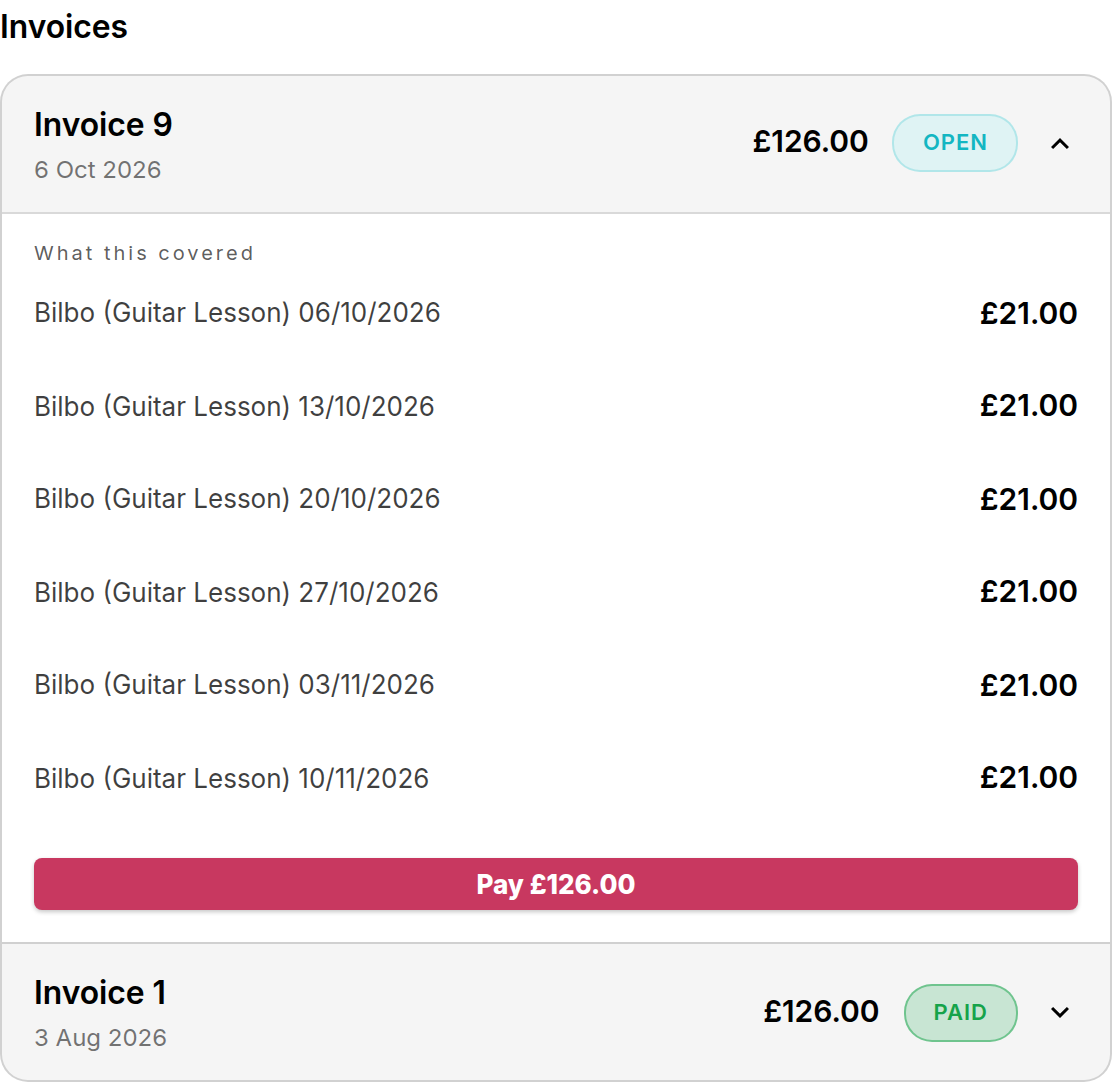
- Select an invoice in the Invoices list.
- Read What this covered. Each line is one lesson and its amount.
- Read Payments, if it appears. It lists the payments made against the invoice. Your fees are not shown.
An open invoice has a Pay button with the amount. It opens the same payment page as the invoice email.
What a student sees
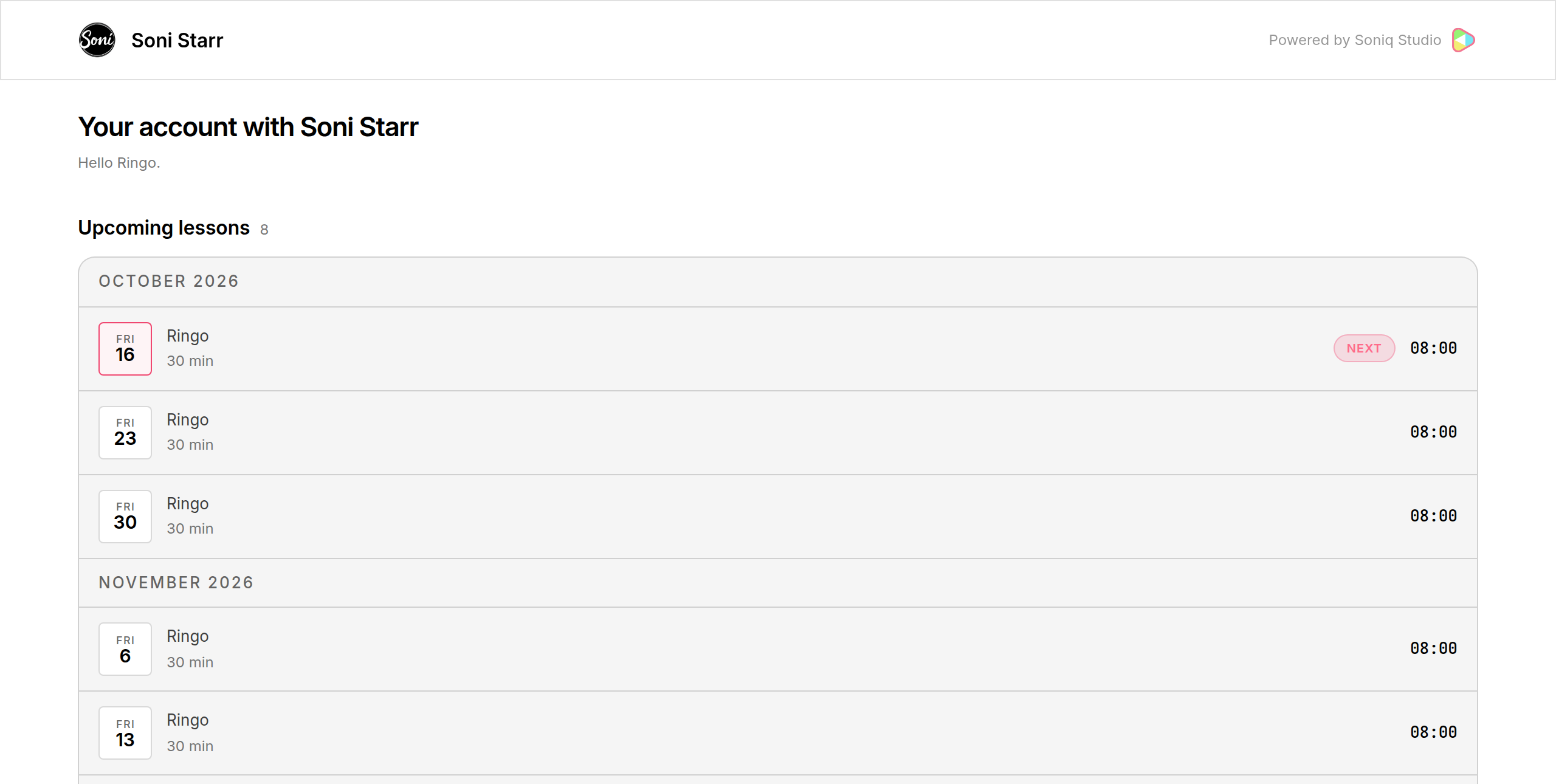
A lessons-only link shows Upcoming lessons and nothing else. It shows no invoices, amounts or Direct Debit status.
On a phone
The page fits a phone screen. Only the To pay card stays at the top. The next lesson is the first row in Upcoming lessons, with a Next label. The list shows four lessons, then a Show more button. The Direct Debit status moves to its own Direct Debit section below Invoices.
When a link stops working
A link that has expired shows “This link has expired” and “Ask your teacher to send you a new one.” Links expire 90 days after you create them.
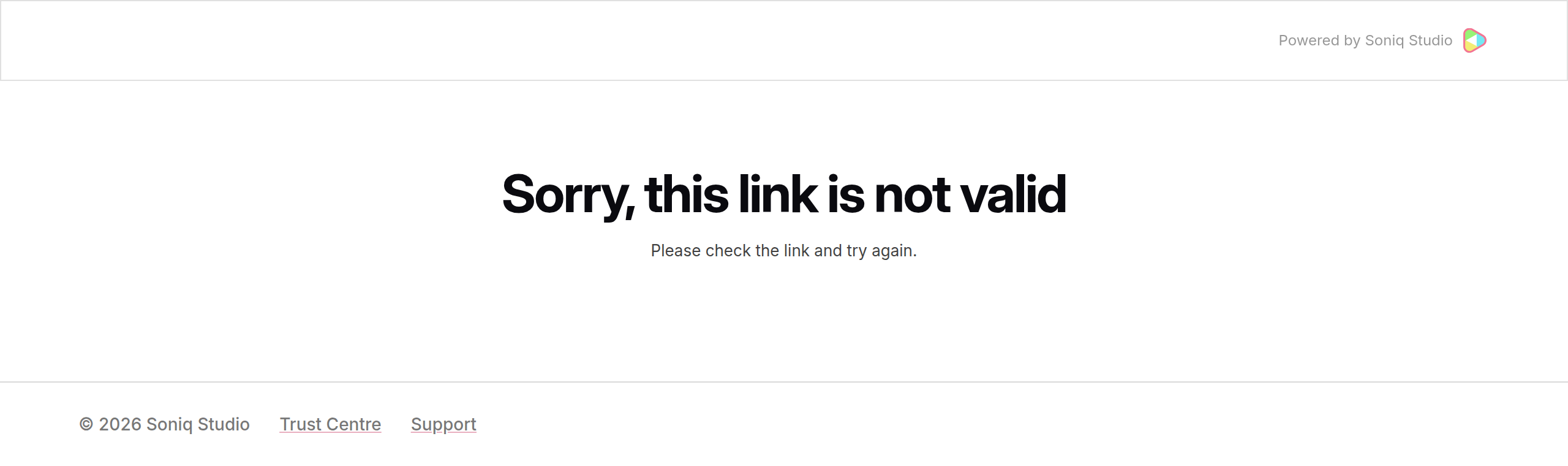
A link that you revoked, or that was mistyped, shows “Sorry, this link is not valid”.
Replace or switch off a link
| To | Select | Result |
|---|---|---|
| Replace one link | Regenerate next to it | The old link stops working. A new link appears. The family’s other links keep working. |
| Switch off one link | Revoke next to it | The link stops working at once. |
| Add links for new family members | Refresh links | New students get a link. Links that work stay the same. |
| Send the links again | Email links | The payer gets an email with every link and QR code. |
After Regenerate or Revoke, send the family the new link.
Related
- Why students get a portal, not an account
- Contact and relationship types explains which students appear on a payer’s page.