
You send a message from a contact’s page. Soniq Studio emails it to the email address on that contact.
Before you start
The contact needs an email address. Without one, the page shows a warning in place of the message box: “You will need to give this contact an email address to enable messages”.
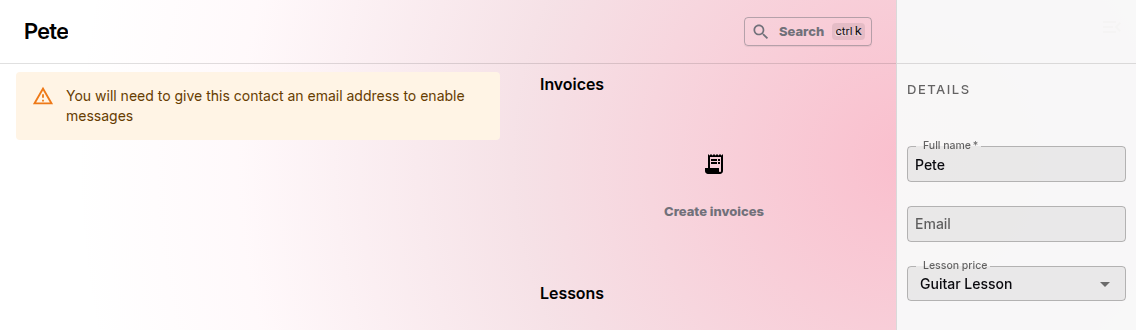
To add the email address:
- Enter it in Email in the Details section.
- Select Update.
Send a message
- Select Contacts in the sidebar.
- Select the person you want to write to. To write to a parent, open the parent’s page, not the student’s.
- Type your message in the box at the top of the page.
- Use the buttons above the box for bold, italic, strikethrough and lists, if you need them.
- Select Send.
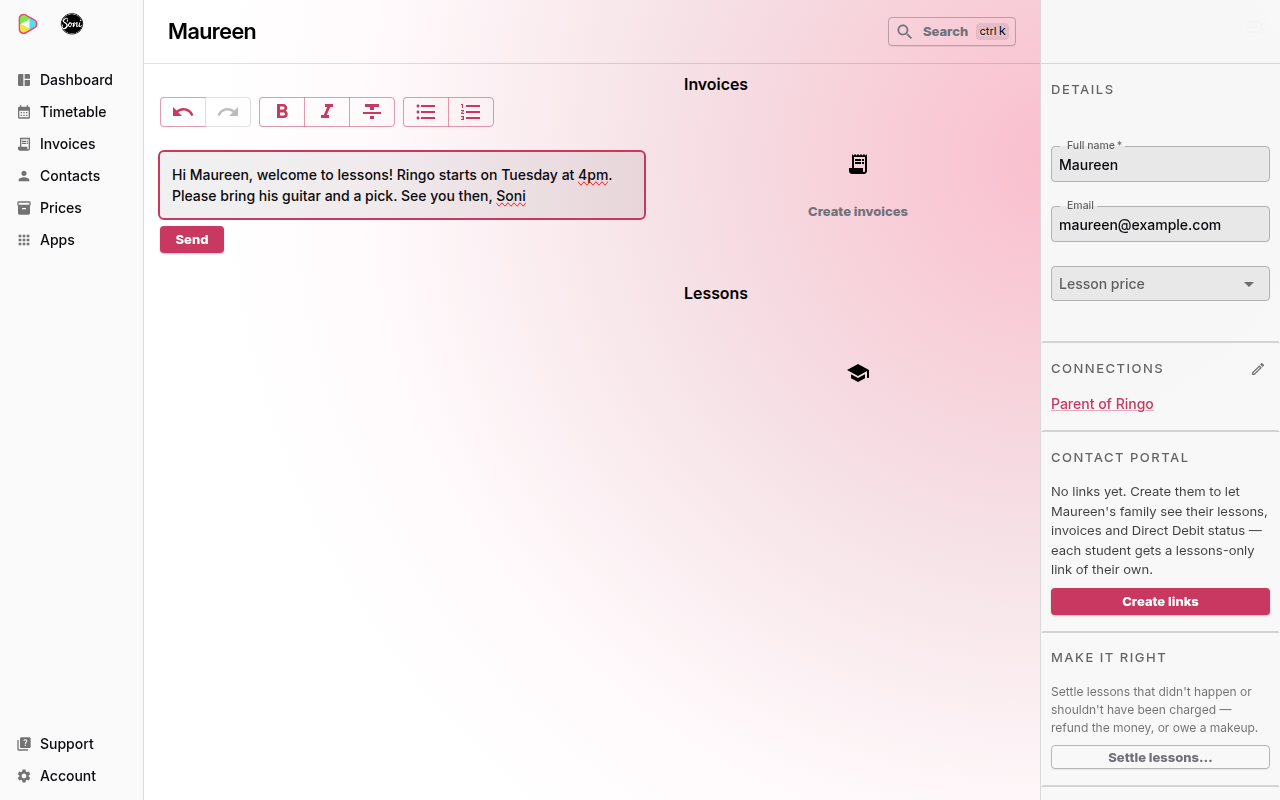
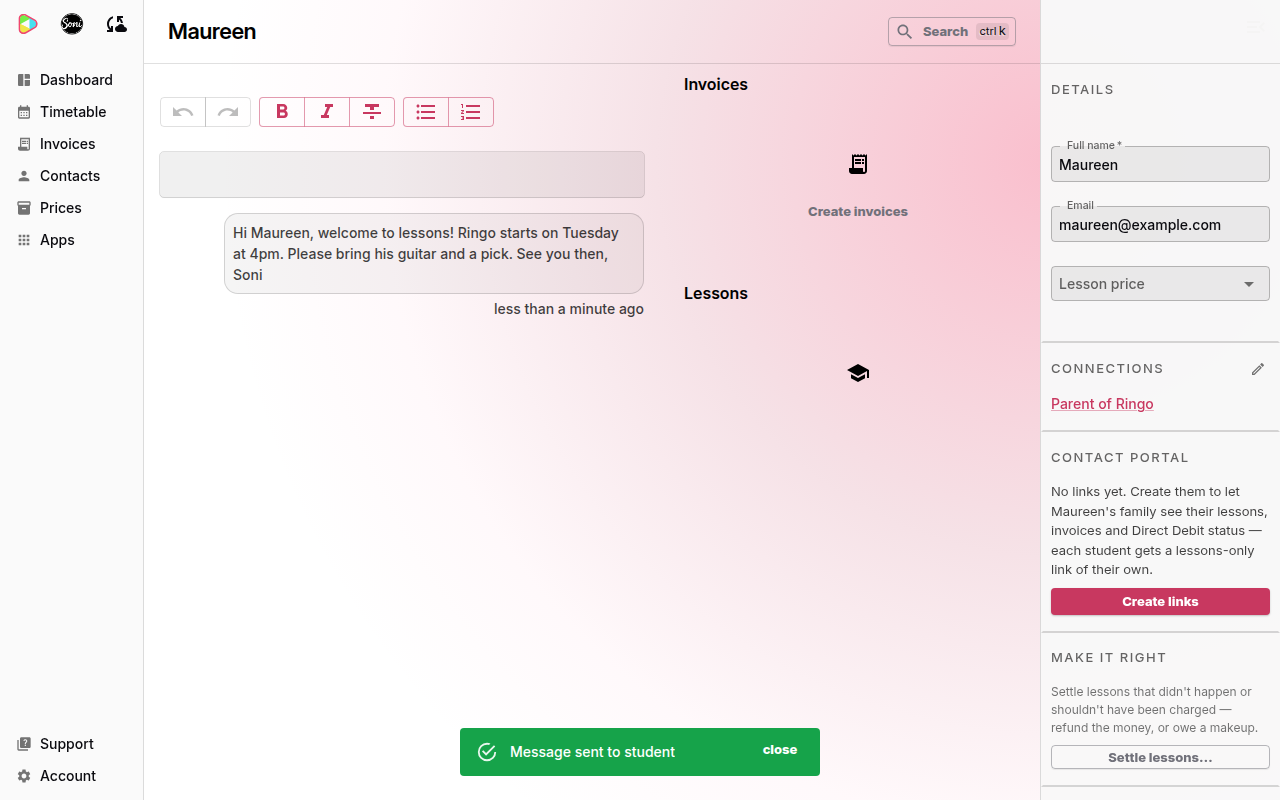
A green “Message sent to student” notice appears at the bottom of the screen. The notice says “student” for every contact, parents included.
What the contact receives
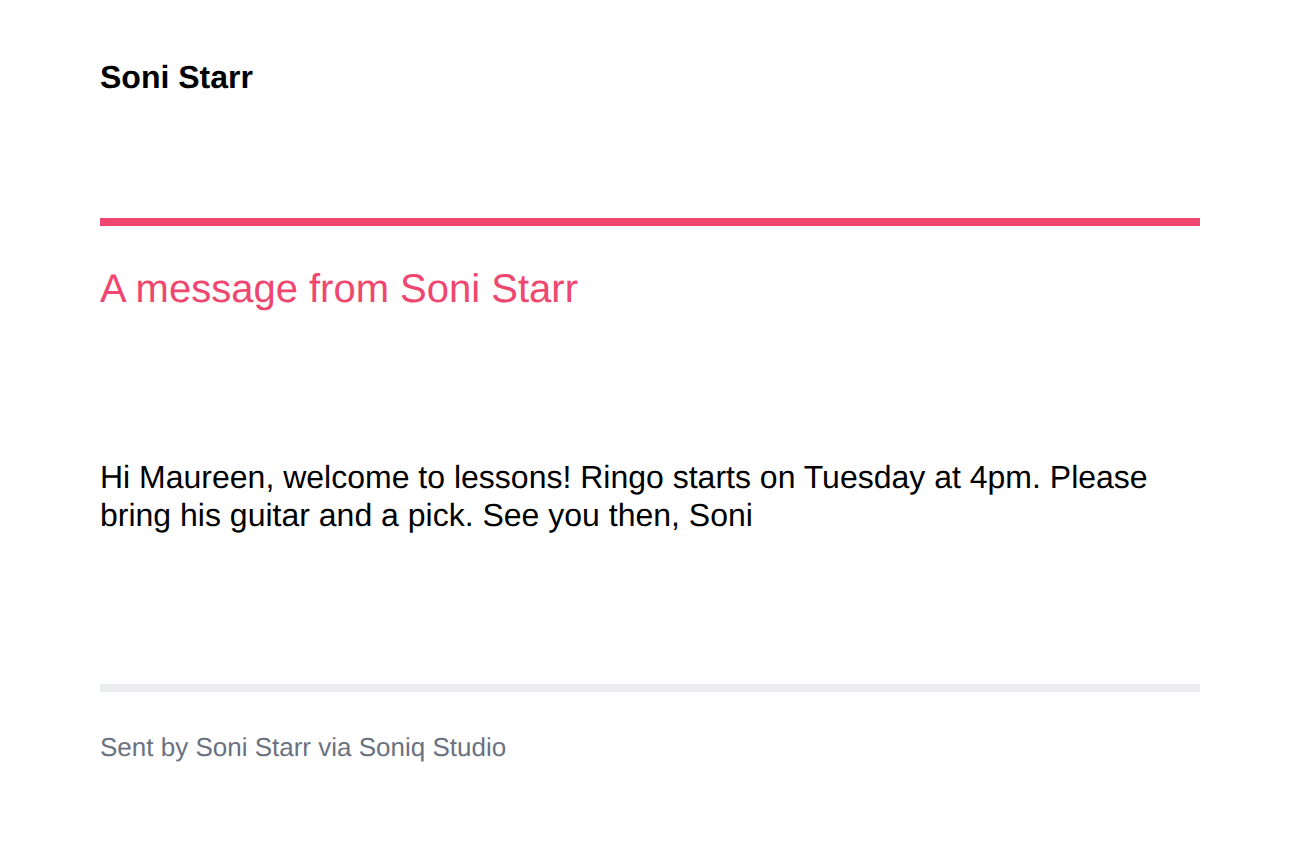
The email subject is “Soniq Message from” followed by your name. The email shows your name at the top and your message below “A message from” your name.
When the contact replies, the reply goes to the email address of your Soniq Studio account. Answer it from your own email.
Find messages you sent
Each contact’s page lists the messages you sent to them, below the message box. The newest message is at the top. Each message shows how long ago you sent it.
Related
- How to add a student and link a parent or guardian
- Notification settings and weekly digest lists every email Soniq Studio sends.