
The timetable generator suggests a lesson time for each student for the coming term. It is an early-access feature for founding members. If you do not see Generate Timetable on your timetable, the feature is not turned on for your account.
Students with no lesson history in Soniq Studio go into your free time slots.
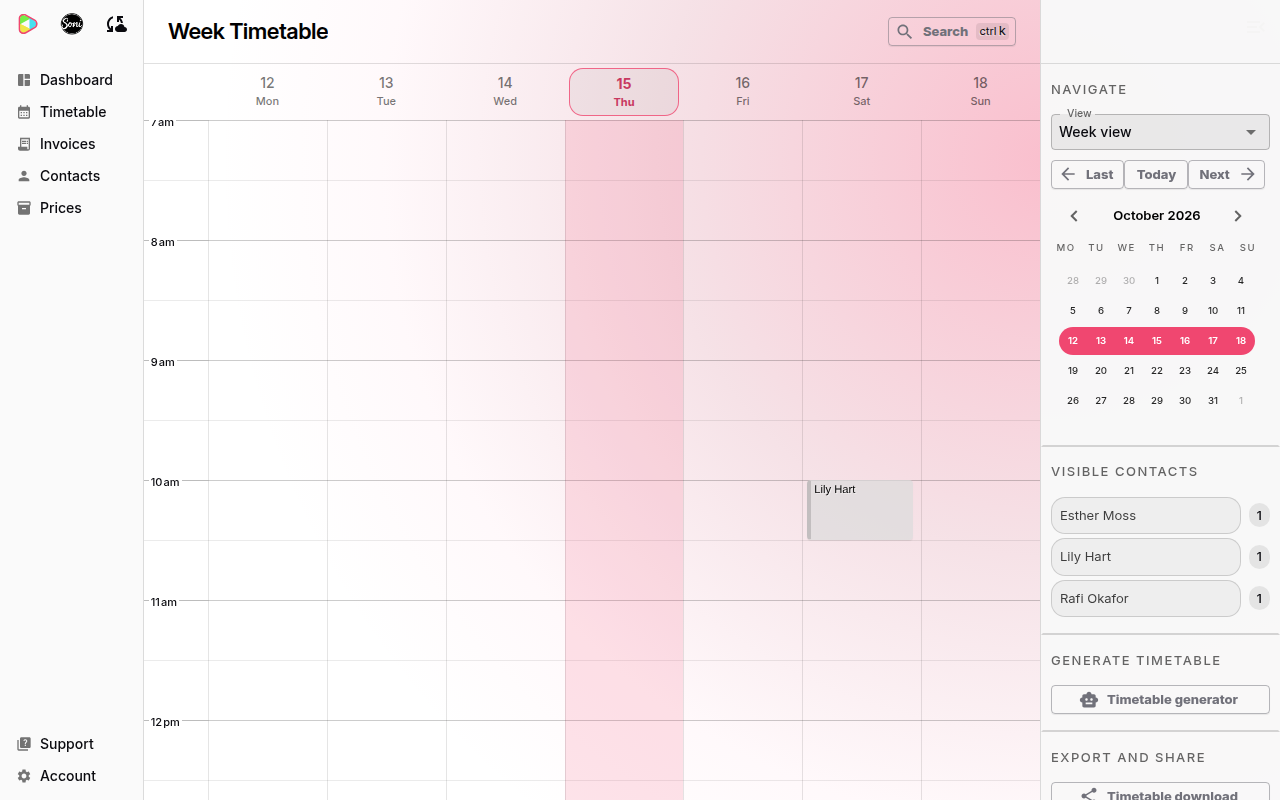
Start the generator
- Select Timetable in the sidebar.
- In the Generate Timetable panel, select Timetable generator.
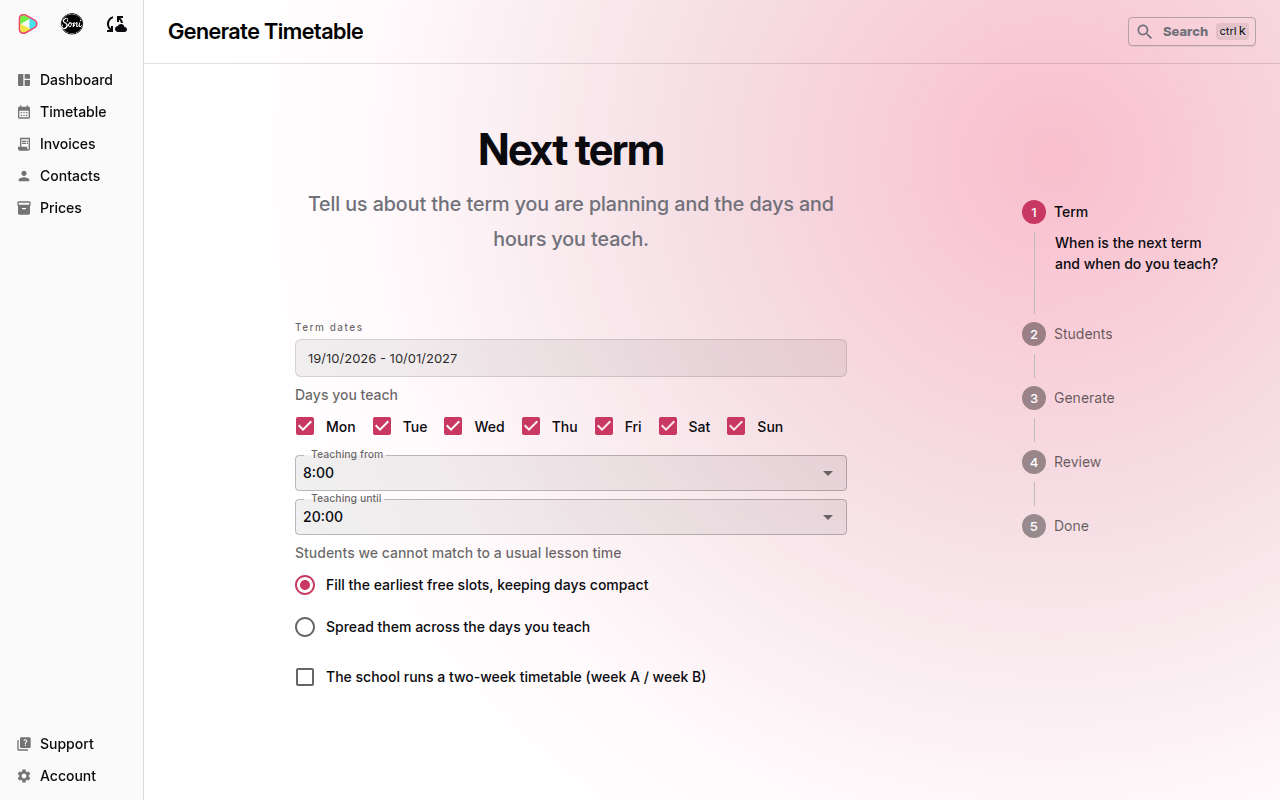
Describe the term
- Choose the first and last day of the term in Term dates.
- Tick the Days you teach.
- Choose your hours in Teaching from and Teaching until.
- Choose how to place Students we cannot match to a usual lesson time:
- Fill the earliest free slots, keeping days compact
- Spread them across the days you teach
- If you teach in a school with a two-week timetable, tick The school runs a two-week timetable (week A / week B). Then choose whether The first week of term is Week A or Week B.
- Select Continue.
The Continue button appears after you change one of the fields.
Choose the students
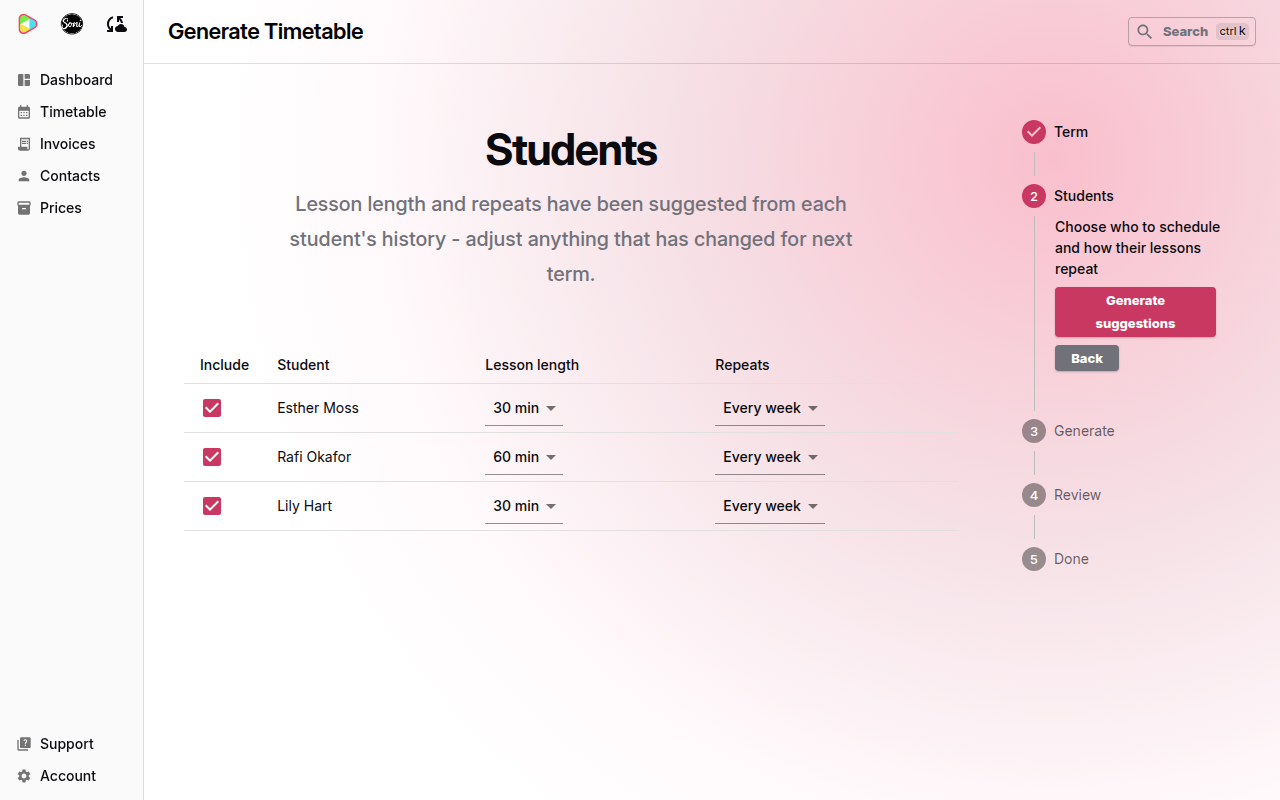
The Students step lists your contacts. Soniq Studio suggests the lesson length and repeat for each student from their history.
- Untick Include for anyone you do not want to schedule.
- Change Lesson length if it is different next term.
- Change Repeats if needed: Every week or Fortnightly. With a two-week timetable, the choices are Same time every week, Different time in week A & B, Fortnightly (week A) and Fortnightly (week B).
- Select Generate suggestions.
Soniq Studio works out the suggestions. This can take up to 30 seconds. Keep the page open.
Check the suggestions
The Review suggestions step lists each student’s suggested lesson. The Match column shows how each time was chosen:
- Strong match, Possible match or Weak match: the time is based on the student’s lesson history.
- Free slot: Soniq Studio could not match the student, so it used a free time slot.
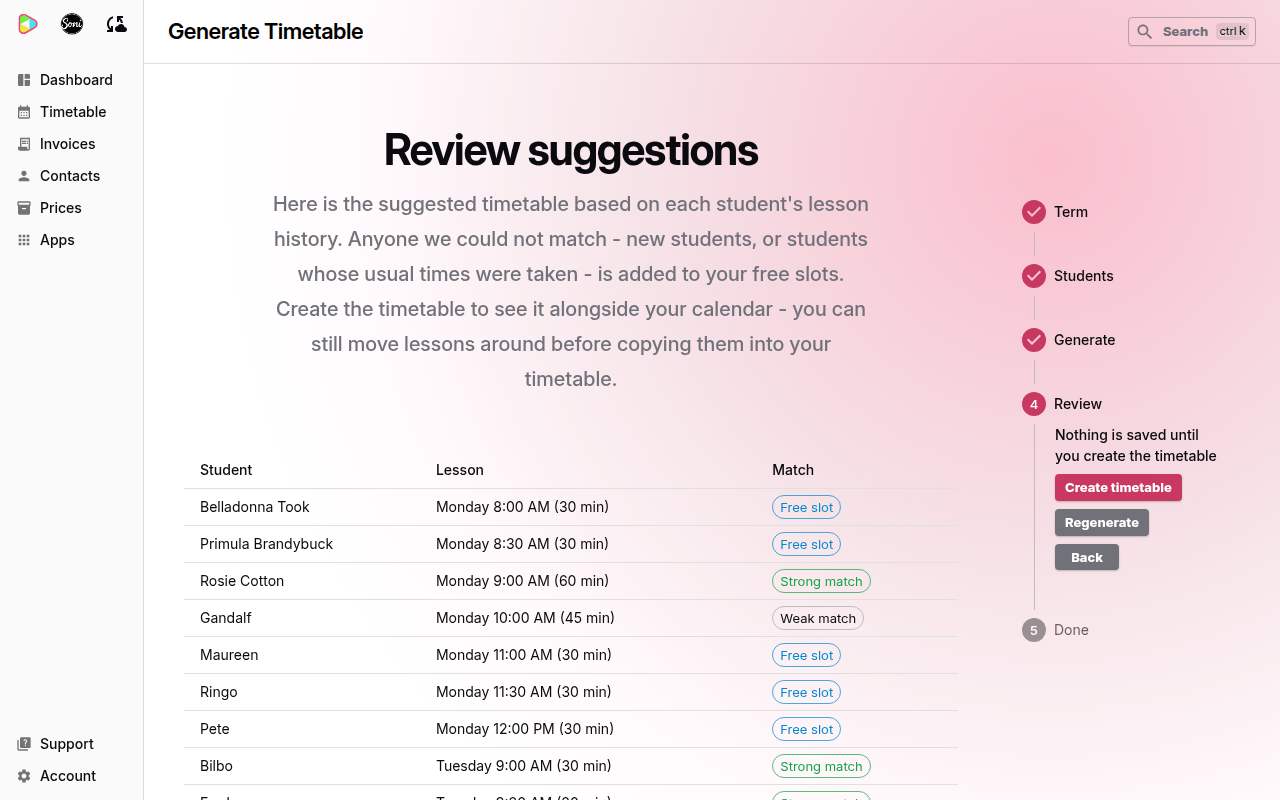
If a student has no space, a warning names them. Add more teaching hours and regenerate, or add them by hand later.
- To try again with the same settings, select Regenerate.
- To change the term or the students, select Back.
- When the list looks right, select Create timetable.
Nothing is saved until you select Create timetable.
Adjust the suggestions on your timetable
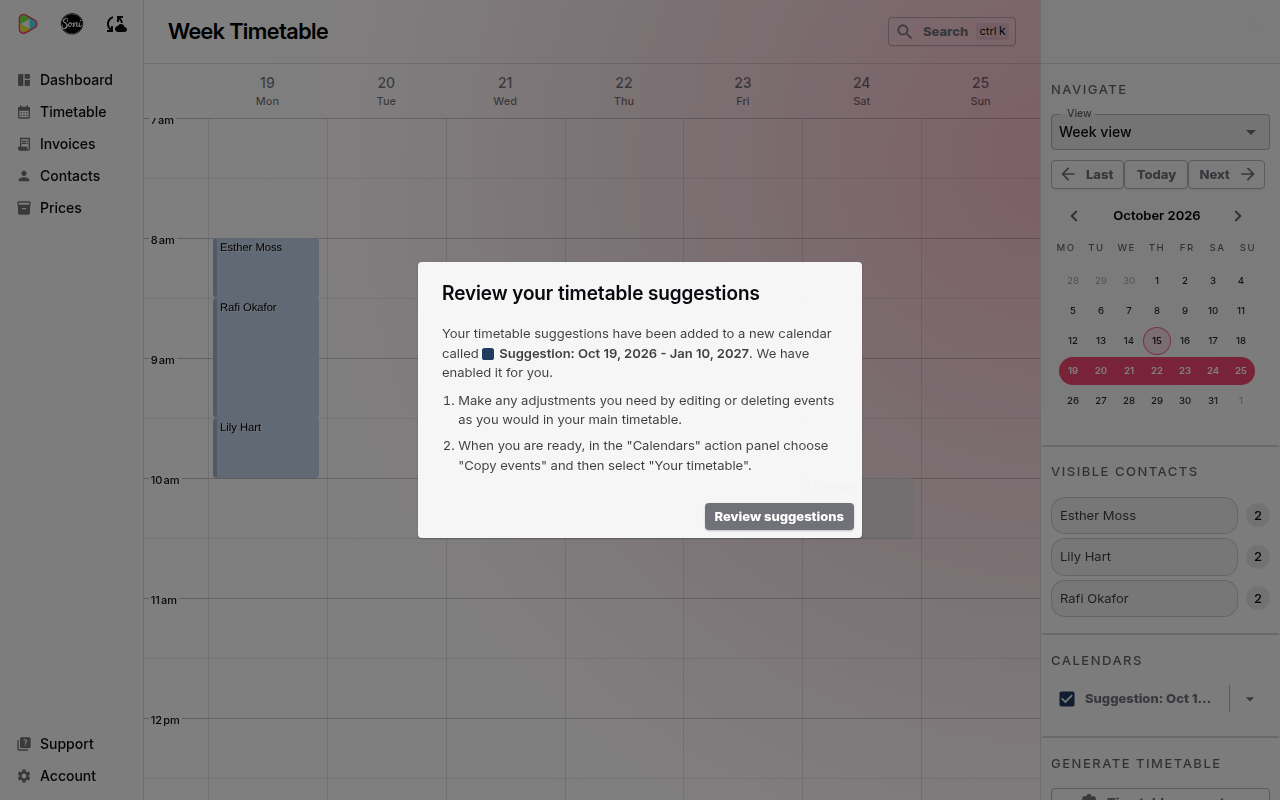
Soniq Studio puts the suggested lessons on a new calendar called “Suggestion:” followed by the term dates. Your current timetable stays as it is.
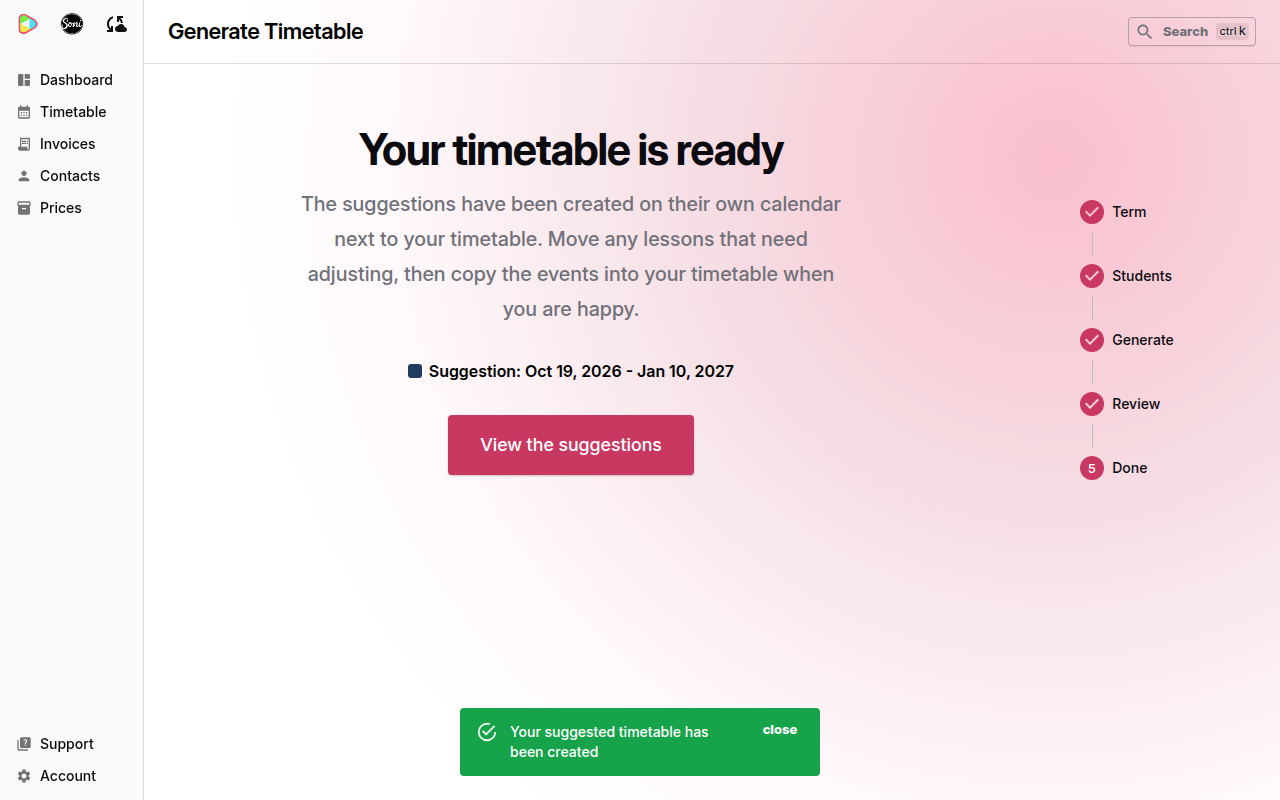
- Select View the suggestions.
- Read the Review your timetable suggestions message and select Review suggestions.
- Move, edit or cancel the suggested lessons as you would on your timetable. See How to add, move, or cancel a single lesson.
Copy the suggestions into your timetable
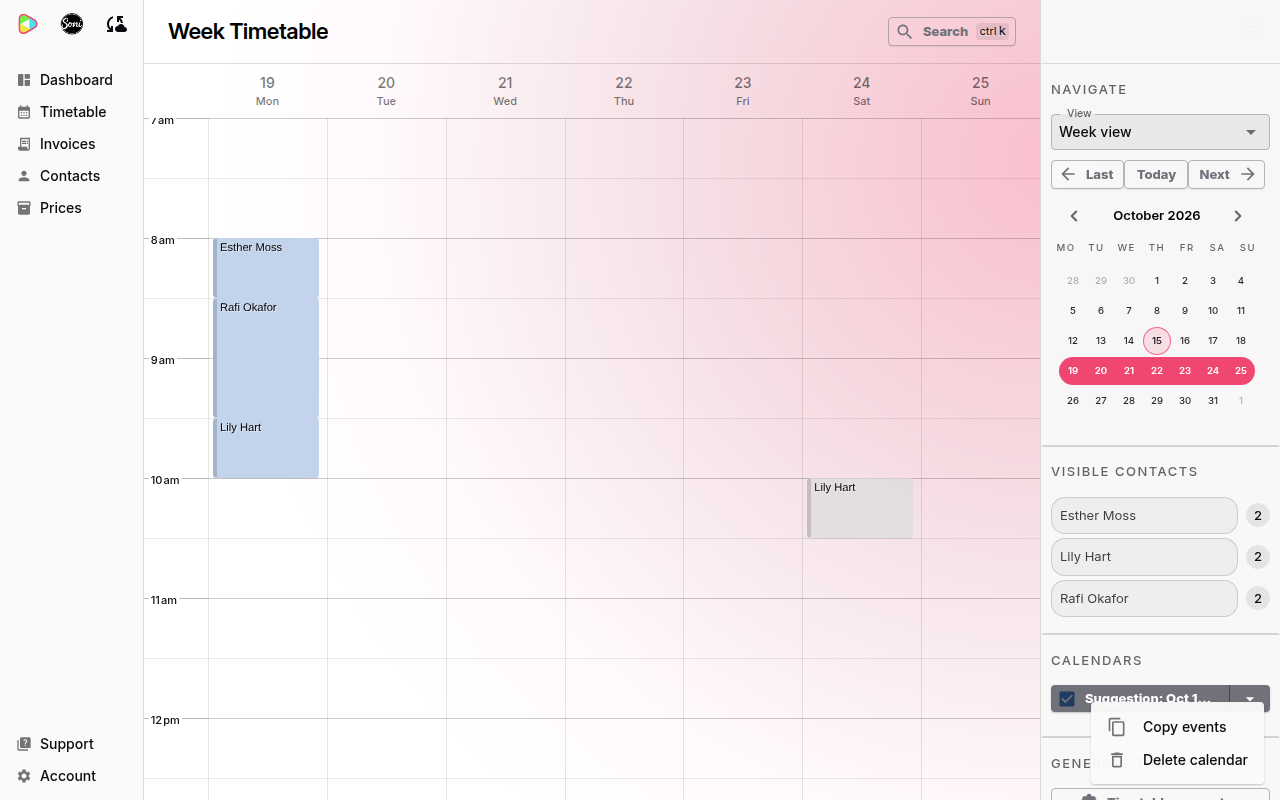
- In the Calendars panel, open the menu next to the suggestion calendar.
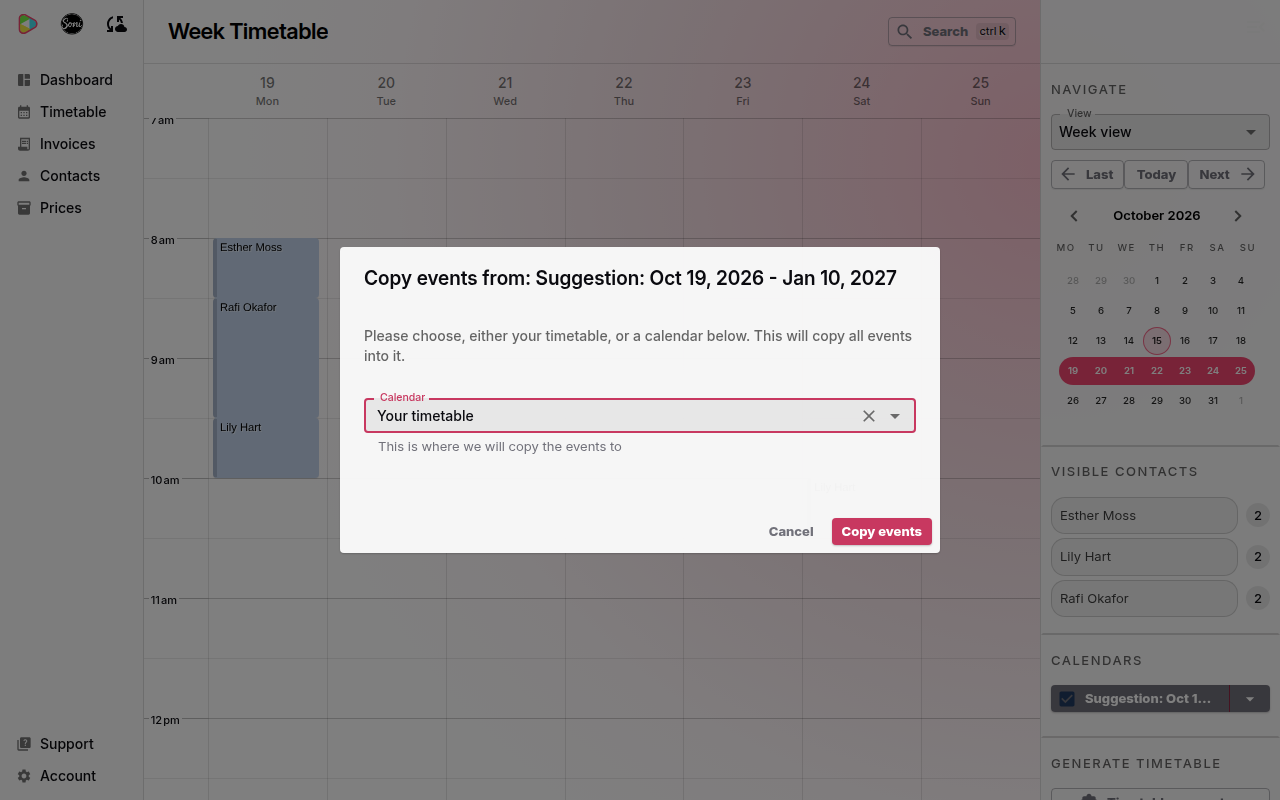
- Select Copy events.
- Choose Your timetable in Calendar.
- Select Copy events.
Start again
To remove the suggestions:
- In the Calendars panel, open the menu next to the suggestion calendar.
- Select Delete calendar.
- Select Delete calendar and events.
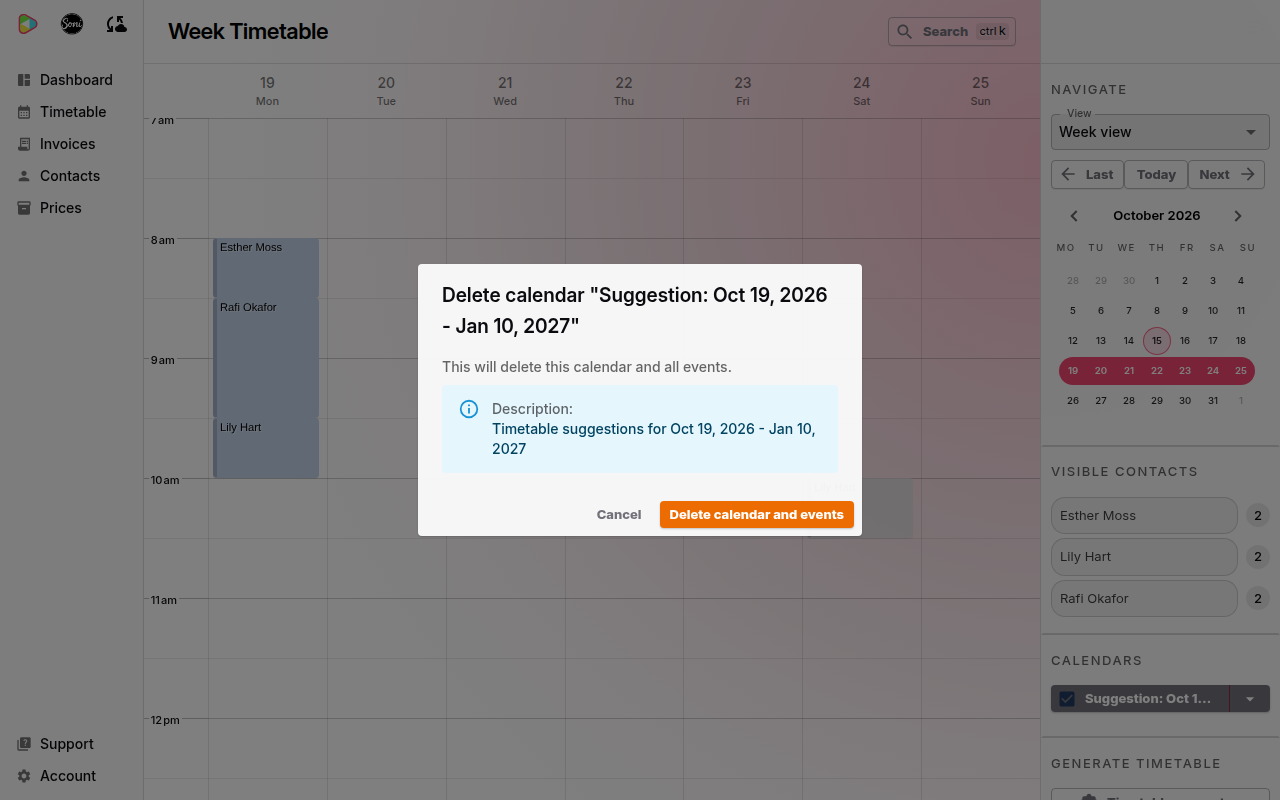
Then start the generator again.
Related
- How to draft a timetable with AI explains how to refresh the lesson history the generator uses.
- Why timetables are forgiving explains why suggestions stay on their own calendar.