
A pay link opens the payment page for one invoice. It is the same page the Pay now button in the invoice email opens. Use the pay link when a family cannot find the email, or when you prefer to send the link yourself.
Copy the pay link
- Select Invoices in the sidebar.
- Open the invoice.
- Check that the status is Open. If it is Draft, select Send invoice first.
- Select Copy payment link in the Actions panel.
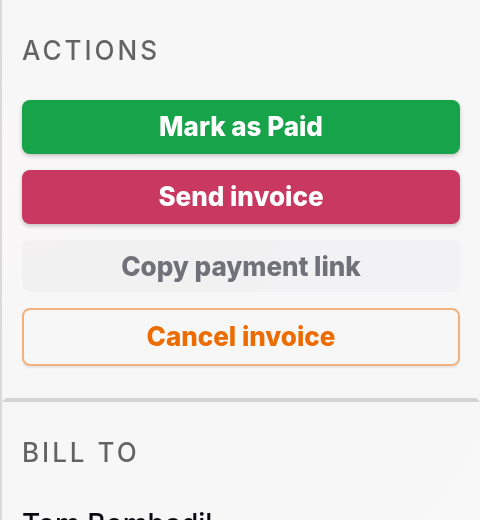
Soniq Studio copies the link. No message confirms the copy.
- Paste the link into a message, a text or a chat to the person who pays.
The link works only after you send the invoice. A link to a draft invoice shows Sorry, this payment link is not valid.
The link stays the same for the life of the invoice. Each invoice has its own link.
What the payment page shows
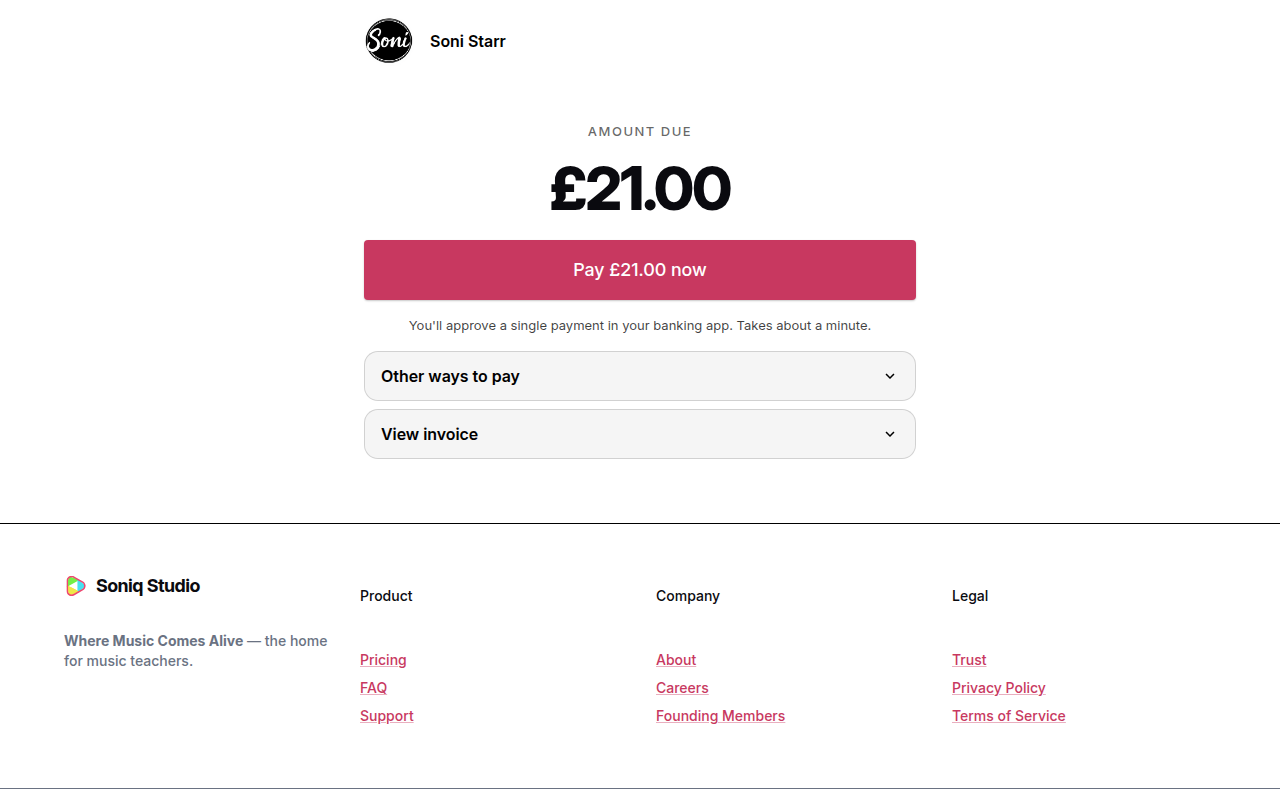
| Part | What it shows |
|---|---|
| Amount due | The invoice total. |
| Main button | Pay by Bank. The person approves one payment in their banking app. |
| Other ways to pay | Direct Debit. Bank transfer also shows here if you added bank account details in Account › Payments. |
| View invoice | The invoice lines. |
If you use Manual payments, the page shows Bank transfer with your bank details and the invoice number as the reference.
After the invoice is paid, the same link shows a thank-you page with the amount, the status, the invoice number and your name.
For the status names on the page, see Payment and mandate statuses.